


Hey there! As a supplier of Small Ball Speakers, I've heard from quite a few folks who are having trouble with their speakers constantly disconnecting. It can be super annoying, right? Well, don't worry! I'm here to share some tips on how to fix this pesky problem.
1. Check the Power Source
First things first, let's talk about the power source. A weak or unstable power supply can often cause your small ball speaker to disconnect.
- Battery-Powered Speakers: If your speaker runs on batteries, make sure they're fresh. Old or low batteries might not provide enough juice to keep the speaker running smoothly. Replace the batteries with new ones and see if that solves the issue. Sometimes, just a simple battery swap can work wonders!
- Plugged-In Speakers: For speakers that are plugged into an outlet, check the power cord. Make sure it's securely plugged in at both ends. A loose connection can lead to intermittent power, which causes disconnections. Also, try plugging the speaker into a different outlet. There could be an issue with the current outlet, like a faulty circuit or a power surge.
2. Examine the Bluetooth Connection
Most small ball speakers connect to devices via Bluetooth. If your speaker keeps disconnecting, the Bluetooth connection might be the culprit.
- Device Compatibility: Ensure that your speaker is compatible with the device you're trying to connect it to. Some older devices might not support the latest Bluetooth versions, which can result in connection problems. Check the user manual of your speaker and your device to confirm compatibility.
- Pairing Process: Sometimes, the pairing process can go wrong. Try unpairing the speaker from your device and then pair it again. On your device, go to the Bluetooth settings, find your speaker, and select "Unpair." Then, put your speaker in pairing mode (usually by pressing and holding a specific button) and search for it on your device. Once you find it, select it to pair.
- Interference: Bluetooth signals can be affected by other wireless devices or objects. Keep your speaker away from other Bluetooth devices, Wi-Fi routers, microwaves, and metal objects. These can cause interference and disrupt the Bluetooth connection. Also, try to keep your device and speaker close to each other. The farther apart they are, the weaker the signal will be.
3. Update the Firmware
Firmware is the software that runs on your speaker. Manufacturers often release firmware updates to fix bugs and improve performance.
- Check for Updates: Visit the manufacturer's website and look for firmware updates for your specific speaker model. They usually provide instructions on how to download and install the updates. Make sure to follow the instructions carefully. Updating the firmware can sometimes resolve connection issues and improve the overall performance of your speaker.
- USB Connection: Some speakers allow you to update the firmware via a USB connection. Connect your speaker to your computer using a USB cable and follow the instructions on the manufacturer's website to update the firmware.
4. Inspect the Audio Jack (if applicable)
If your speaker has an audio jack for wired connections, check it for any damage or debris.
- Clean the Jack: Use a can of compressed air to blow out any dust or debris from the audio jack. Sometimes, a little bit of dirt can prevent a proper connection. You can also use a cotton swab dipped in rubbing alcohol to gently clean the inside of the jack. Make sure the jack is completely dry before plugging in your audio cable.
- Check the Cable: Examine the audio cable for any signs of damage, such as frayed wires or bent connectors. If the cable is damaged, replace it with a new one. A faulty cable can cause intermittent connections and audio problems.
5. Reset the Speaker
If all else fails, you can try resetting your speaker. This will restore the speaker to its factory settings and can sometimes fix connection issues.
- Reset Button: Look for a reset button on your speaker. It's usually a small, recessed button that you need to press with a paperclip or a similar object. Press and hold the reset button for a few seconds until the speaker resets. After the reset, you'll need to pair the speaker with your device again.
- Factory Reset via Settings: Some speakers allow you to perform a factory reset through the settings menu. Check the user manual of your speaker to find out how to do this.
Our Product Range
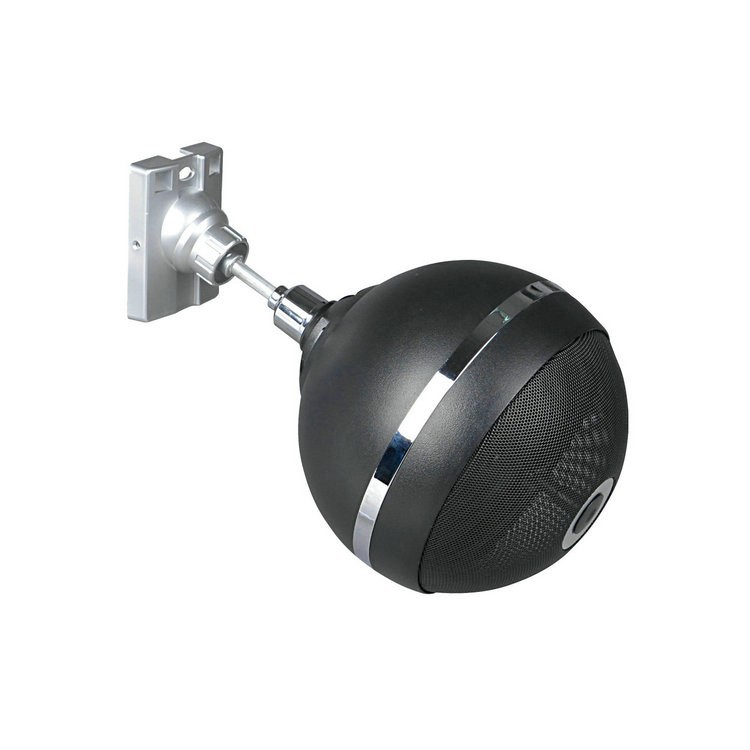
As a supplier of Small Ball Speakers, we offer a wide range of high-quality products. If you're in the market for a new speaker, check out our 6.5 in Pendant Speaker, Pendant Sphere Loudspeaker, and Commercial Pendant Speakers. These speakers are designed to provide excellent sound quality and reliable performance.

Contact Us for Purchasing
If you're interested in purchasing our small ball speakers or have any questions about fixing your current speaker, feel free to contact us. We're here to help you find the perfect speaker for your needs and ensure that you have a great audio experience.
References
- Speaker user manuals
- Bluetooth technology guides
- Manufacturer's websites for firmware updates


